

Welcome to AravindInsights! I'm Aravind Kumar Yedida, a recently graduated Master's in Computer Science and an aspiring data analyst. Here, I dive into the exciting world of data analytics, business intelligence, and cutting-edge AI, always with a strong focus on responsible AI and digital privacy. Expect actionable insights, deep dives into ethical tech, and explorations of how technology can genuinely improve lives."
EA Sports Cricket 07 is still one of the most loved cricket games ever made. Even after many years, players still want to experience its classic gameplay on modern systems.
Important Before You Start
Modern Windows Defender and third-party antivirus tools may flag old game installers as phishing or malware.
This usually happens because the game files are outdated, not because they are harmful.
To avoid issues, some temporary adjustments are required during installation.
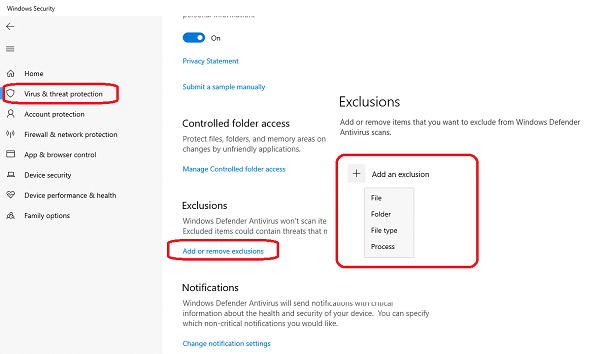
Step 1: Create a Dedicated Game Folder
Create a folder named:
Cricket 07
You can create this folder in any drive such as D: or E:.
After creating the folder, add it to Windows Defender or your antivirus exclusions list.
This prevents the game files from being deleted during extraction.
Step 2: Disable Antivirus and Network Temporarily
Before extracting the game files:
Disable Windows Defender or any third-party antivirus temporarily
Turn off your internet connection or enable Flight Mode
This step is important because some files may get quarantined during extraction if the system is online.
Step 3: Download and Extract the Game
Download the Cricket 07 RAR file from the provided link.
Extract the RAR file directly into the Cricket 07 folder you created earlier.
Once extraction is completed, the game files are ready.
Step 4: First Launch and Profile Setup
Open:
Cricket07.exe
The game will start with a default resolution of 640×480.
Create a player profile when prompted.
After saving the profile, close the game completely.
Step 5: Change Resolution Using Res Changer

Go to the game installation folder and open:
reschanger.exe
Click on Open and navigate to:
Documents
EA SPORTS(TM) Cricket 07
Select the .pro file (your saved profile).
Now adjust:
Screen resolution
Graphics settings
Display preferences
Save the changes and close Res Changer.
Step 6: Launch the Game
Open Cricket07.exe again.
The game will now launch with the updated resolution and settings.
Installation is complete.
Common Tips
Run the game as Administrator
Avoid installing the game inside Program Files
Re-enable antivirus only after confirming the game works properly
Final Thoughts
EA Sports Cricket 07 continues to deliver unmatched gameplay and nostalgia.
With the correct setup, it runs smoothly even on modern Windows systems.
This method is simple, fast, and reliable for direct gameplay.
If this guide helped you:
Follow my Gaming Node blog for more classic game setups
Share this article with friends who still love Cricket 07
By Aravind Kumar
Tech Blogger | Gaming & System Optimization